Start with
a little here.
Find a place. Drop a pin. Give it a name that means something to you.
Search, pins & named areas elsepin
A different location. A route at your pace.
Make your next move with Elsepin for iPhone.
Location simulation. Requires sideloading,
iPhone pairing, and LocalDevVPN.
Find a place. Drop a pin. Give it a name that means something to you.
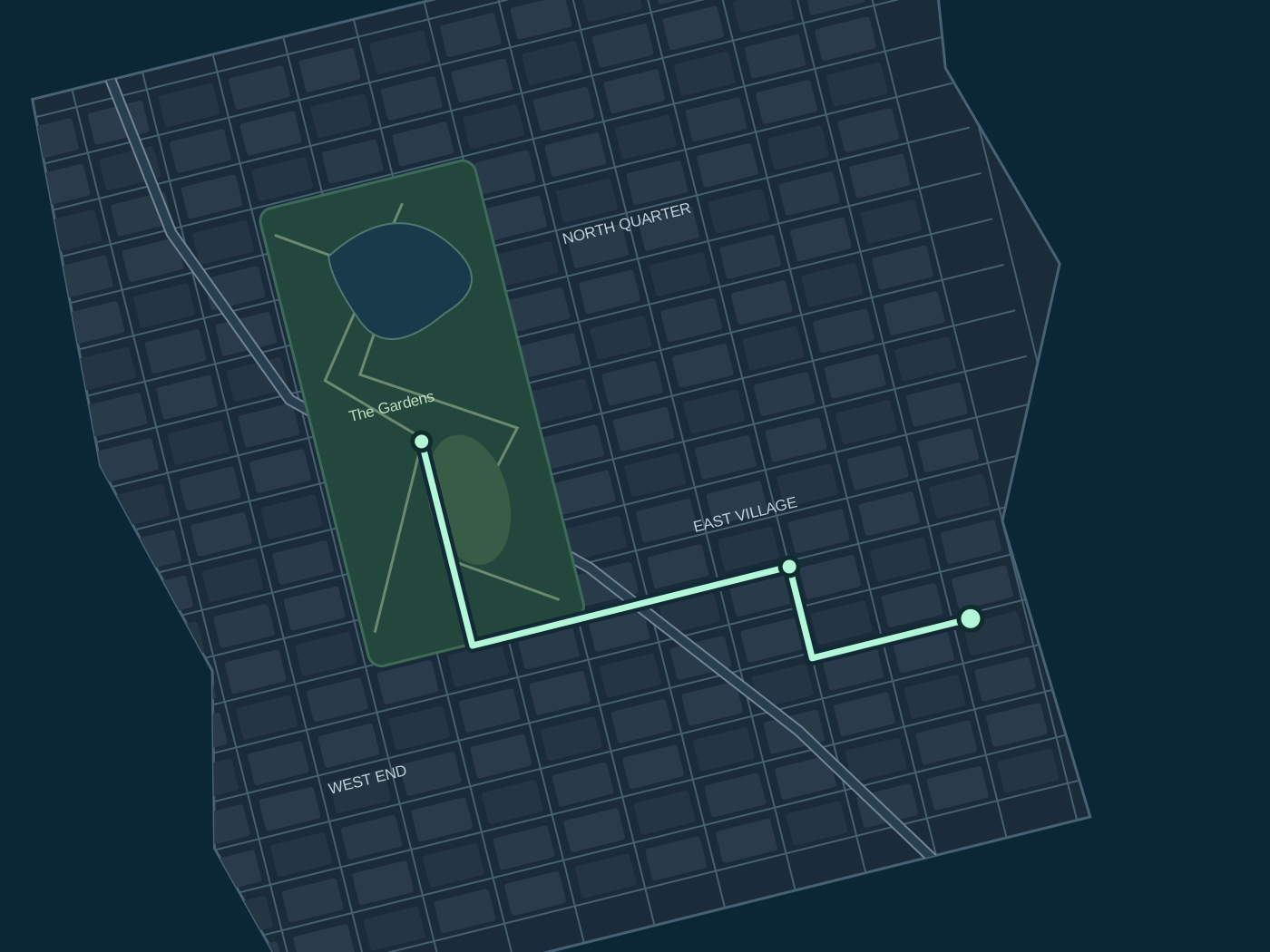
Search, pins & named areasPlan each stop and set the speed for each leg. Pause when you want. Keep Stop close at hand.
Your route. Your pace.Save the route. Favorite the pin. Keep your library together, with backups you can review before importing.
Eight themes. Thirteen icons.
Try a look, then make it your own in Elsepin.
Petal pink and berry. The app’s default, with a softer side.
Bloom uses light appearance. Choose Glacier to preview your device’s light and dark settings.
Independent of your theme. Original artwork, from the app’s collection.
Prism Jumpgate
Pin selected · illustration only
A few places to come back to.
Example places for this preview.
Try themes and icons with the controls beside this illustration.
Interactive illustration of the 2.6.1 development design. Actual maps and system controls differ. This page never changes your location.
Elsepin connects to your iPhone through a local developer tunnel. Give setup a moment before you go anywhere.
Follow the setup guideThis site previews the newer 2.6.1 design, still in development. The public release may look different.
Use the official release and your preferred signing setup. Back up an existing installation before replacing it.
Connect LocalDevVPN, follow the in-app pairing checklist, then check the connection.
Review a pin or route and start when you’re ready. Keep the tunnel connected while using the session controls.
The useful things to know before you begin.
No. The map and session buttons are an illustration. The site does not request your location, connect to your iPhone, or start a real session.
An iPhone with a compatible signed installation, LocalDevVPN, and a valid pairing. Signing permissions and iOS behavior matter; a downloaded IPA alone is not a complete setup. Follow the setup guide and the release’s requirements.
No. Session status describes Elsepin’s own connection and updates. Another app may still show an older location. Optional provider checks show a reported location and its age; they do not guarantee a fresh update. Find My Devices and Find My People are different, and People support is not a promised working feature.
Use Stop spoofing and wait for confirmation. If Elsepin can’t clear the location, connect to Wi-Fi, reconnect LocalDevVPN, and try again. Connecting to another device’s Wi-Fi hotspot can also work. Closing or force-quitting Elsepin doesn’t confirm that it cleared. Check the location in another app too.
The app has a saved library and backup import/export. Before changing your installation or signing identity, export a backup. Imports let you review individual changes; keep pairing files private and separate.
Your signing setup must retain the extension and supported capabilities. Saved-location widgets need shared App Group access. Re-signing can affect those permissions and alternate icons; the website preview cannot verify your installation.
Preview choices stay in page memory and reset on reload. The site code has no analytics, account forms, or location requests. Hosting providers may retain normal request logs. Read the website privacy note.